
Product documentation
Business connectors package reusable integration knowledge for a specific domain, application or external partner. They combine endpoint patterns, mappings, staging structures, custom entities and functional behaviour into a structured connector model. This prevents the same concepts from being rebuilt for every customer, while still allowing project-specific extensions when customer requirements, business rules or partner formats differ.
The standard EDI sales order integration uses the Agent Integration Platform to receive electronic purchase orders from customers and process them as sales orders in Dynamics 365 Supply Chain Management. Its purpose is to convert externally supplied order messages into controlled sales order transactions in D365FO.
In practice, EDI can refer to formal EDIFACT message exchange, but the same connector concept can also support customer-specific XML files or CSV order files that must be imported as sales orders.
The connector distinguishes between EDIFACT, XML and CSV order formats. The general principle is file-based: customer purchase orders are prepared as electronic messages, placed in an agreed source location and picked up by an Integration Studio job. EDIFACT messages may be delivered by an EDI broker or sent directly by the customer through FTP. XML and CSV messages can also arrive as email attachments and be saved manually by sales support in the correct input folder.
The Agent Integration Platform runs independently in the Power Platform and Azure environment. Integration tasks define where EDI messages are picked up, how they are transformed and mapped, and which endpoint receives the result. For EDI sales orders, the endpoint is the D365FO staging queue table, which is available through Data Integration > Common > Staging queue management. One or more tasks can be combined into an integration job, which can run manually or on a schedule, for example every hour. Each processing step is logged and monitored in detail.
General EDI sales setup is maintained on the EDI Sales tab under Data Integration > Setup > Integration Parameters. Standard values can be defined for Sales origin, Sales unit and Sales taker. The Sales origin is especially important because it can control follow-up behaviour, such as automatic order cost calculation, promotional discount processing and kit structure expansion.
GLN (Global Location Number) values are used to identify parties and addresses. In D365FO, these values are maintained on customer records, vendor records and address details. During processing, the integration uses GLN values to determine the correct customer and address context.
Product identification is usually based on EAN13 (European Article Number, 13-digit) barcodes. This allows the incoming customer item reference to be mapped to the correct internal product number.
XML order messages are more flexible and are normally agreed with a specific customer or customer group. There is no prescribed XML structure, but the message must contain enough information to identify the customer, order reference, requested dates, delivery address and ordered items. Multiple Integration Studio tasks can be configured when different customers use different XML structures or field names.
CSV order messages are often used when customers send order attachments by email. Sales support can save the file in the agreed location, after which the integration imports it. CSV mappings must clearly define the meaning of each column, such as record type, order ID, relation or GLN, references, order and delivery dates, delivery terms, delivery mode, delivery address, item number or EAN, quantity, unit, amount, weight and line instructions. CSV formats can differ widely, including separator choice and whether a header row is present.
After the files are picked up, the messages are transformed and written to Staging queue management. Valid messages can be validated and processed automatically into D365FO sales orders. Exceptions remain visible in the staging queue, where users can inspect errors and manually validate or process records from the Actions tab after correcting setup or data issues.
A common inbound flow consists of receiving or saving the customer purchase order file, picking up the file through Integration Studio, transforming EDIFACT, XML or CSV into the internal sales order structure, mapping customer and product identifiers through GLN and EAN13 setup, writing the result to the staging queue, validating the message and creating the D365FO sales order.
Optional post-processing can be automated by using the EDI Sales origin as a filter. Typical follow-up batches include marking orders as complete for order entry, generating sales order confirmations, recalculating ATP (Available to Promise) delivery dates and automatically releasing sales orders to the warehouse.
Outbound EDI flows can complement the inbound sales order process. Dynamics 365 Finance & Operations data is collected through entities, staging output or message queues, transformed into the agreed partner format and delivered through the configured channel. Typical outbound messages include sales order acknowledgements, sales order confirmations, dispatch advice messages and invoices.
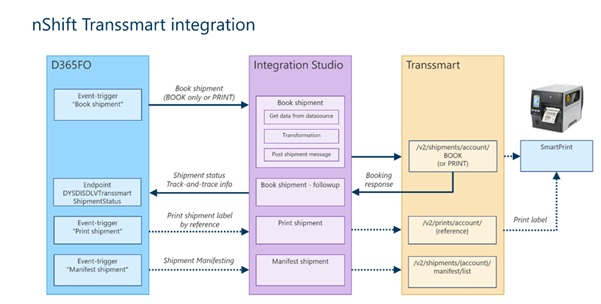
The Transsmart integration connects Microsoft Dynamics 365 Finance & Operations warehouse processes with the nShift Transsmart Transportation Management Platform through the Agent Integration Platform. It standardizes carrier execution by sending WHS shipment, container, delivery address, package, weight and service information to Transsmart. Shipment results are then written back to D365FO, including the external shipment reference, shipment status and tracking information.
The solution is designed for Dynamics 365 Finance & Operations Warehouse Management. The WHS shipment is the main business object and can contain multiple containers, such as boxes, packages or pallets. Depending on the warehouse process and Transsmart setup, shipment booking can be started manually from the WHS shipment, automatically after packing, automatically after loading or after closing a container when individual container processing is supported.
The summarized scope for the Transsmart integration is:
The Agent Integration Platform orchestrates the Transsmart integration through event-triggered, manually started or scheduled integration jobs. The main connections are D365FO OData for reading and updating shipment data, the D365FO Package API where required, Transsmart API connections for acceptance and production, and Azure storage for internal files and configuration. D365FO HTTP triggers can start the relevant Agent Integration Platform jobs, after which the jobs execute follow-up tasks to update D365FO with the result of a successful or failed Transsmart call.
D365FO configuration is maintained in Delivery Services Integration Parameters. This setup centralizes the Transsmart shipment number sequence, mappings for container types, carriers, carrier services and delivery terms, and default values for services and cost centers. It also defines weight and dimension units, shipment note type, pickup and drop-off date behaviour, default country of origin, product hierarchy or Intrastat handling, and optional intercompany end-customer contact retrieval.
SmartPrint settings are part of the operational setup for label printing. Transsmart generates the carrier label and sends the print job to a local SmartPrint instance, following a pattern comparable to the D365FO Document Routing Agent. Printer selection can be determined by the WHS worker, pack station or fallback defaults configured in the Delivery Services Integration Parameters.
The integration uses custom D365FO data entities to retrieve and update shipment information. The TranssmartShipments data entity retrieves WHS shipment data for Transsmart messages. The TranssmartShipmentStatus data entity writes back booking and status results, while manifest processing can update the relevant external shipment manifest entity.
Operational users can monitor Transsmart shipment statuses such as NEW, BOOK, LABL, MANI and DONE. Booking errors are indicated by the ERR status and usually point to missing setup or data issues, such as carrier-service mapping, package dimensions, weights or product data. Troubleshooting can be performed by reviewing the Agent Integration Platform job logs, the D365FO Integration Studio logging and the Transsmart portal.
Optional capabilities described in the technical documentation include Transsmart carrier selection and transport price return. With carrier selection, a generic D365FO carrier can allow Transsmart to determine the final carrier and service. With transport price return, the Transsmart response can provide price and currency information for update on the WHS shipment, provided that the response transformation contains those fields.
The webshop and Magento connector supports integration between Dynamics 365 Finance & Operations and Magento webshops through Dynamics Integration Studio. It combines asynchronous DMF-based imports and exports with OData and API-based flows. The connector publishes webshop master data and operational updates from D365FO to Magento and imports webshop orders back into D365FO.
The key characteristics of the Magento integration are:
Operational troubleshooting is handled through the Integration Studio configuration, the D365FO Data management workspace and Staging queue management. Together, these tools allow support users to review configuration, monitor imports and exports, inspect staging records and follow up on processing errors.
The warehouse integration solution connects Dynamics 365 Finance & Operations (D365FO) with an external warehouse application, such as Vanas WMS. In this setup, D365FO remains the ERP host system, while the external warehouse application manages the operational warehouse execution. Stock details and physical warehouse locations are maintained in the external warehouse application, while D365FO represents the stock administratively through a WHS-enabled warehouse with a single blackbox location, such as WMSLOC.
The integration is built around D365FO WHS work. In a WHS Light setup, warehouse work is created in D365FO and then sent to the external warehouse application as work orders. Inbound processes, such as purchase receipts, transfer receipts, return receipts and finished goods put-away, are sent as input work orders. Outbound processes, such as sales picking, raw material picking and transfer issue, are sent as picking work orders. Work templates determine whether work is processed externally or handled fully inside D365FO.
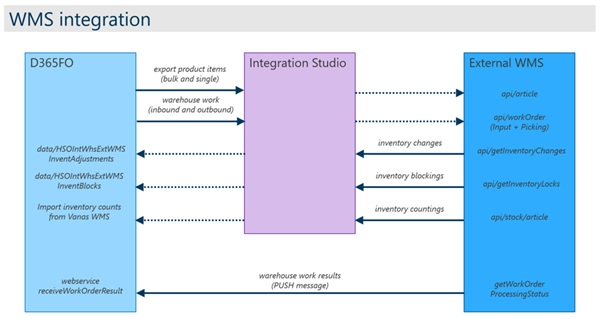
Released product master data is maintained in D365FO and exported to the External Warehouse Application. This export includes product details, translations, barcodes, units of measure, product attributes, volume configuration and WHS settings. Product data can be sent in batch through a scheduled DMF export and Agent Integration Platform job, or manually for a single item by using the Send item to WMS function.
Work orders are normally sent automatically to the External Warehouse Application when they are created in D365FO. Inbound and outbound work can use HTTP triggers to start the relevant integration flow. If a technical issue occurs, users can manually resend the work order from D365FO. For most outbound integrations, the Agent Integration Platform acts as middleware by handling triggering, transformation, message splitting where required and posting to the External Warehouse Application.
When the External Warehouse Application completes warehouse work, the result is pushed directly back into D365FO through a work-order result web service. This push mechanism is preferred because it allows work results to be processed immediately in the D365FO staging queue. Pull-based retrieval is not recommended for time-sensitive processes because it can introduce delays that are too long for flows such as pick, pack and ship.
The solution also supports inventory-related updates from the External Warehouse Application. Stock discrepancies are retrieved as inventory changes and processed in D365FO through staging records and inventory adjustment journals. Inventory blockings are imported into D365FO, where the inventory status dimension moves quantities between available and blocked stock while the physical stock remains represented at the WMSLOC blackbox location. Full inventory counts can also be retrieved and imported into D365FO as counting journals, but this process should not be scheduled automatically because full stock synchronizations require careful validation.
Overall, the warehouse integration solution creates a controlled split of responsibilities. D365FO remains responsible for ERP processes, master data, WHS work creation, financial inventory postings and administrative completion. The External Warehouse Application manages operational warehouse execution and detailed stock-location handling. The Agent Integration Platform and direct web services keep master data, work orders, work results, inventory changes, blockings and counts synchronized between both systems.