
Product documentation
Consumers and companies order more and more through webshops. Often, this requires a (partial) payment which is processed by a Payment Service Provider (PSP). The preferred Microsoft PSP is Adyen, but there are many more like WorldPay, PayPal, Square, Klarna, etc. These PSPs periodically provide detailed reports to their customers on the payments they have processed. This report contains references to the orders, payment authorizations, amounts paid and fees taken. And on the bank statement of their customer, there is usually only a single line for the PSP, referring to the details provided in the file.
When the (web)order is processed in Microsoft Dynamics 365 for Finance and Operations it is considered paid (from an end customer perspective), but the money will only come in when our customer receives the money from their PSP, minus their fee.
Our Microsoft Dynamics 365 for Finance and Operations customers want to reconcile these reports against the orders that have been received and are processing, to make sure they get paid for everything.
To keep track of what the PSP still owes them, customers can import the detailed transactions report and use that to reconcile against transactions that were brought in from the webshop. If they use Microsoft Commerce, customer invoices and settled payments are brought into Microsoft Dynamics 365 for Finance and Operations. If they have a custom interface they may also bring in both the invoice and payment data or they may bring in only invoices. In Banking we have a solution for both.
These imported transactions can be journalized. When both the (web)order and the PSP transaction have been journalized, they can be picked up by a reconciliation process that settles the transactions, using the Merchant Identifier (which is usually the (web)order-id), by looking at the description / text field of the journalized transaction.
Periodically, the customer can check which transactions did not yet clear and take action towards the PSP (or reconcile the transactions manually, if applicable).
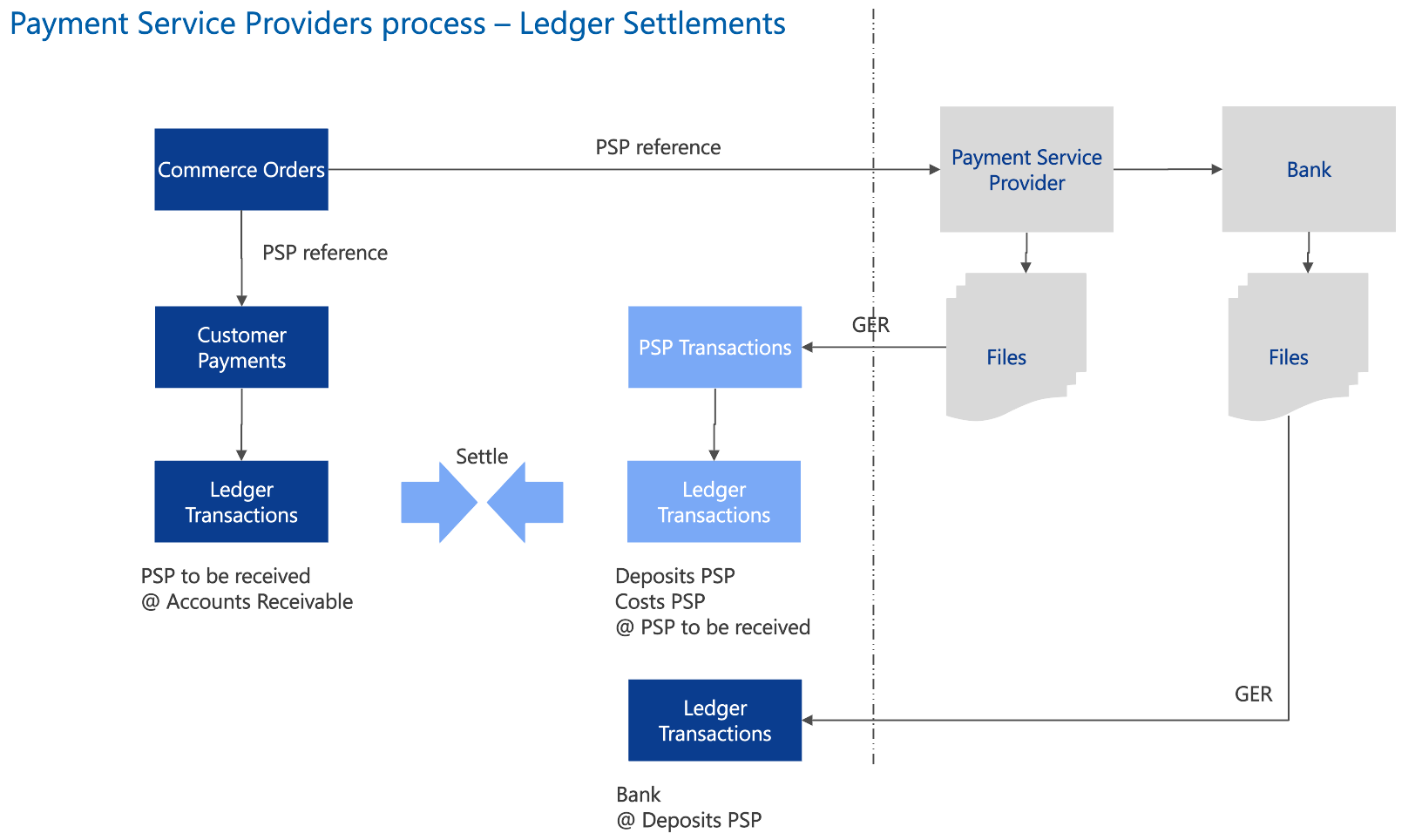
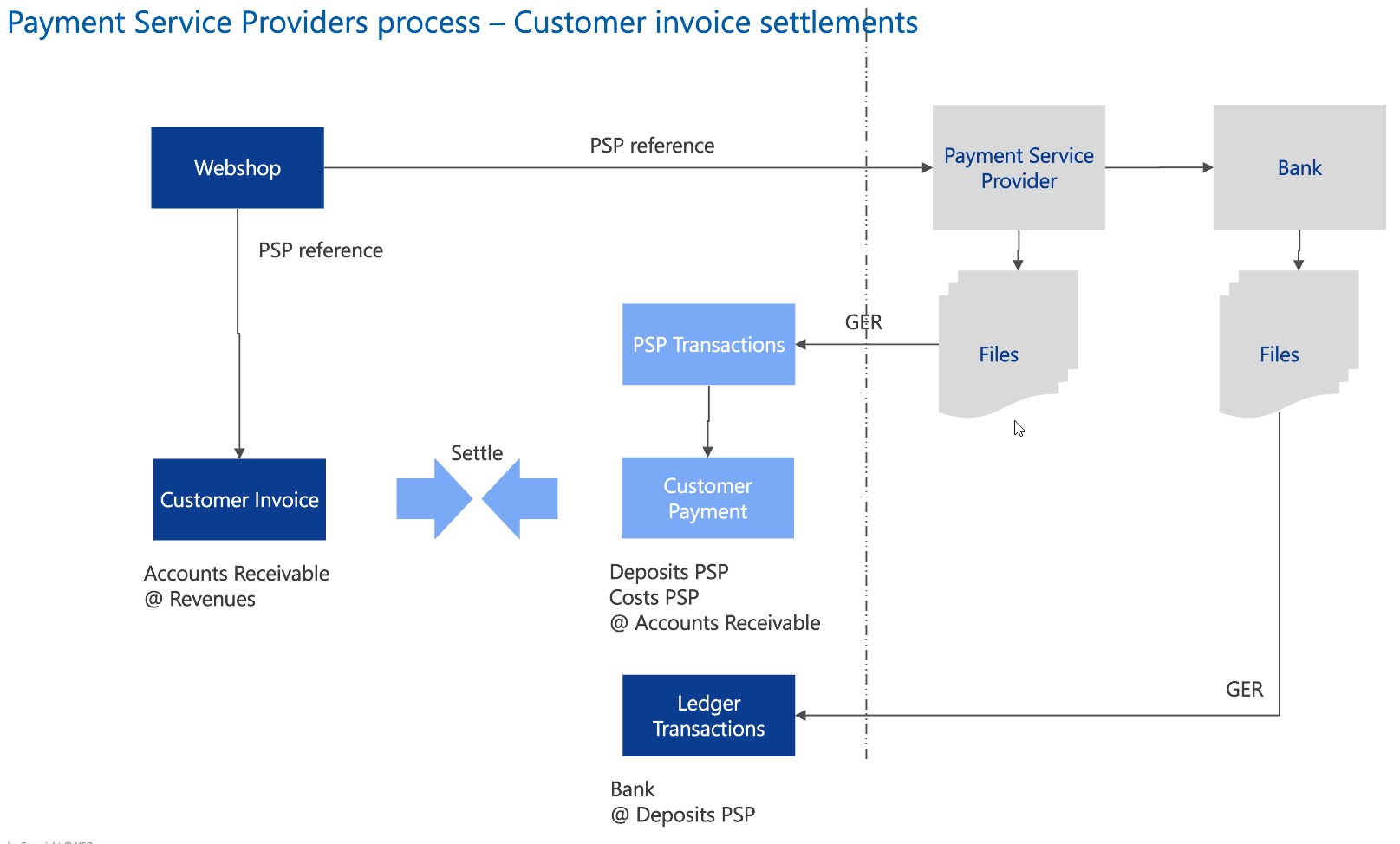
Through a new set of tables and new GER-file, customers will be able to bring their detailed PSP files into Microsoft Dynamics 365 for Finance and Operations. From there, they will be journalized resulting in financial transactions. These transactions can either be settled against ledger transactions ('Ledger Settlements scenario') or against open invoices ('Customer Invoice Settlements scenario'). In the case of a Customer Invoice Settlements scenario, we're assuming that all web orders & invoices are created against the same (dummy) customer. Please note that this process therefore does not support consolidated customer invoices.
The overall solution looks like this:
In Cash and Bank Management / Payment Service Providers, open the menu 'Payment Service Provider Batches'. To import a new file, click 'Import batch file'. It will create a new batch header and lines.
| Field | Description |
| Batch | Unique number / Identifier, coming from the file |
| Status | Status of the batch (Imported, Journalized) |
| Service provider | Payment Service Provider used for the import |
| Created by | User that imported the file |
| Created date and time | Time the file was imported |
| Field | Description |
| Line | Line number |
| Type | Type of transaction line, as specified by the PSP |
| PSP Reference | Identifier for the Payment Service Provider. Might be meaningful to our customer, but not necessarily |
| Merchant Reference | Method of payment used by the client paying. Needs to be present in the Methods of Payment table of Microsoft Dynamics 365 for Finance and Operations |
| Payment Specification | Further detailing of the method of payment |
| Created date and time | Time the line was created |
| Modification reference | Internal reference of Payment Service Provider. Probably meaningless to our customer |
| Modification Merchant reference | Additional Merchant Reference |
| Currency | Currency of transaction |
| Gross credit | Gross credit amount |
| Gross debit | Gross debit amount |
| Commission | Commission amount taken by PSP |
| Markup | Markup taken by PSP |
| Fee | Fee taken by PSP |
| Interchange | Interchange fee taken by PSP |
| Net credit | Net credit amount (to be paid to our customer) |
| Net debit | Net debit amount |
After importing, the batch can be journalized by clicking the Journalize button. It will create a new Journal using the Journal Name specified on the PSP. And each line from the batch that has a type which is to be journalized, will create a line in the journal. The status of the PSP batch will change to 'Journalized'.
If the user sets 'Post Journal' to 'Yes', the journal will immediately be posted. If set to 'No', the journal can be reviewed and manually edited before posting.
In the case of the Ledger settlements scenario, only ledger accounts will be used. The offset ledger account will always come from the Journal Name as specified on the PSP. The Net credit amounts will be posted to the 'Account' specified in the PSP line mapping. And the sum of all the fees will be posted to the 'Cost Account' as specified in the PSP line mapping.
In the case of the Customer invoice settlements scenario, the customer specified on the PSP will be used for the credit and the debit transactions are created from the Net credit amount and the sum of the fees.
The created journal can be viewed by clicking the 'Ledger Journal' button at the top. If the Ledger Journal has not been posted yet, it can be deleted. Such deletion will change the status of the PSP batch back to 'Imported'.
For high-volume batches containing large numbers of transaction lines, the standard Journalize process may take significant time as it runs as a single sequential task. The Journalize (Parallel) feature addresses this by splitting the journalizing work across multiple parallel batch tasks, dramatically reducing overall processing time.
Note
When Journalize (Parallel) is triggered, the system:
An information message is displayed immediately after job submission showing the batch number, total lines, task count and lines per task.
The number of tasks and lines per task are calculated automatically — no manual split size input is required:
| Value | Formula |
| Task Count | min(MaxTasks, totalLines / minLinesPerTask), clamped to a minimum of 1 |
| Lines per task | Ceiling of totalLines / taskCount |
Example - with MaxTasks = 8, MinLinesPerTask = 1000 (default parameter settings)
| Total lines | Task count | Lines per Task |
| 500 | 1 | 500 |
| 4000 | 4 | 1000 |
| 8000 | 8 | 1000 |
| 12000 | 8 | 1500 |
| 50000 | 8 | 6250 |
Note
The parallel tasks are wired with the following dependency chain:
mermaid
flowchart LR
W1["Worker Task 1"]
W2["Worker Task 2"]
WN["Worker Task N"]
C["Consolidate Task"]
P["Post Task (optional)"]
W1 --> C
W2 --> C
WN --> C
C --> P
Posted transactions can be settled automatically, using a common identifier. For ledger transactions this identifier is looked for in the description field, and for customer payments the identifier is the invoice number.
Go to Cash and Bank Management / Payment Service Providers / Automatic Settlement. In the dialog, select a Data Interval that the settlement process should consider. Use e.g. Current Year - to date or Current and Previous period.
Banking will consider the ledger accounts defined in General Ledger Parameters / Ledger Settlements and group them by their ledger description. For such a group, all debits and credits are summarized and if the total sum is 0.00 all transactions in the group are settled.
Go to Accounts Receivable > Period tasks > Settlement > Automatic Customer Settlement. In the dialog, select the appropriate way to define the date:
| Field | Description |
| Latest date | The most recent date of any of the transactions in a group that is settled. Usually the payment date, because it happens after the invoice |
| Today's date | The date of today, i.e. the day the process is run |
| Selected date | A manually selected date |
| Show info | Shows detailed information on the transactions considered, grouped and settled. Typically used during implementation or if a particular invoice & payment are not picked up by the automatic process |
The Payment Service provider functionality is licensed via a separate license key.
With Adyen being the preferred PSP of Microsoft, our product is based on Adyen and there is an out-of-the-box Adyen GER file available.
A new generic Payment Service Provider model and a specific implementation of Adyen have been added to the HSO Banking product. To validate whether they have already been imported, go to the workspace Electronic Reporting and select the tile Reporting configurations. It will open a tree control showing the available configurations. Find DYS Payment Service Provider model. It has a PSP destination mapping and a Adyen CSV Format associated with it.
Import can be done in two ways.
1. Import the Banking Solution in the solution tab of Lifecycle Services (LCS). This will put the GER files into the GER Configuration tab. Download them and import them manually.
2. Import via the HSO Electronic reporting repository:
Navigate to Electronic Reporting workspace
The imported version is now available in the Reporting Configurations. To check this, navigate to the Electronic reporting Workspace and click on Reporting Configurations Tile and check whether the Report Layout that you have imported is shown.
PSP formats link the GER format to a format that can be selected on a PSP.
In Cash and bank management > Setup > Payment service providers > Payment service provider formats, link an ER-configuration to a format.
| Field | Description |
| Format | A user friendly name identifying a PSP format |
| Import format configuration | The configuration as defined in Electronic Reporting |
Customers can have multiple Payment Service Providers and they may be set up differently. The Payment Service Provider setup consists of 2 parts: a header definition and a line definition. On the header the importing format, Journal Name and (optionally) the default customer are defined. On the lines, the ledger accounts for the various transactions are defined.
In Cash and bank management > Setup > Payment service providers > Payment service providers, define the PSPs the customer is working with.
| Header | Description |
| Service provider | The PSP the customer is working with |
| Import format | The import format to be used for this PSP |
| Journal name |
The journal name to be used when ledger transactions are created for this PSP Note |
| Offset customer | (Optional) the customer to be used in case of the Customer Invoice Settlements (non-Commerce) scenario |
| Field | Description |
| Type | The type of line as defined in the file of the PSP. Different PSPs may have different types. At least define a mapping for each type that needs to be journalized. To make sure nothing gets overlooked or forgotten, best to define all incoming types. |
| Account type | The account type for the 'Amount to be received from the PSP' |
| Account | Ledger account for the 'Amount to be received from the PSP' |
| Cost Account | Ledger account to post the PSP costs directly related to this type of transaction |
| Journalize |
Indicates if rows of this type should be journalized or not. Some types of lines (e.g. Opening Balance) are often excluded from journalizing. |
Create a Journal name of type 'General Ledger' and give it a fixed offset account of type 'Ledger'
General ledger > Ledger setup > General ledger parameters > Ledger settlements
On the Ledger settlements tab, activate the checkbox 'Enable ledger settlements' and add the ledger accounts that need to be auto-settled. This will typically be the ledger account specified as the offset account on the PSP Journal Name.
The parallel journalizing feature is controlled by three parameters found in Cash and bank management > Setup > Payment service providers > Payment service provider parameters, on the Journalize settings tab.
| Field | Description | Remark |
| Enable journalize )parallel) | Master switch to enable the parallel journalize feature. When set to Yes, the Journalize (Parallel) button becomes visible on the Payment Service Provider Batches form | YES/NO type field, default setting = NO. |
|
Maximum parallel tasks |
The maximum number of batch tasks that can be created for a parallel journalize run. An additional task is only created when there are enough lines to justify it based on the minimum lines setting |
Number type field, default setting = 8 |
|
Minimum lines per task |
The minimum number of transaction lines required before an additional parallel task is created |
Number type field, default setting = 1000 |
Note
| Batch volume | Recommended MaxTasks | Recommended MinLinesPerTask |
| <5000 lines | 4 | 1000 |
| 5000 - 20000 lines | 8 | 1000 |
| >20000 lines | 8 | 2500 |
| Question: | When should I use Journalize (Parallel) instead of Journalize? |
| Answer: | Use Journalize (Parallel) when processing batches with a large number of transaction lines (typically 4,000+) where the standard sequential journalize process is taking too long. For smaller batches the standard Journalize process is sufficient. |
| Question: | Can I see the temporary journals created by the parallel worker tasks? |
| Answer: | No. Temporary journals created during parallel processing are intentionally hidden from the General journal form until the consolidation task completes. Once consolidation is done, the single master journal becomes visible. |
| Question: | What happens if one of the parallel worker tasks fails? |
| Answer: | If a worker task fails, the consolidation task will not run as it depends on all worker tasks completing successfully. The batch job will show an error status and the infolog in the batch task history will contain the details. The PSP batch status will remain Imported so the process can be retried. |
| Question: | What happens if the post task fails? |
| Answer: | The consolidated master journal will already exist and be visible in the General journal form. The posting failure details will be available in the batch task history infolog. The journal can then be reviewed and posted manually. |
| Question: | The Journalize (Parallel) button is not visible — why? |
| Answer: | The button is only shown when Enable journalize (parallel) is set to Yes in Payment service provider parameters > Journalize settings. |
| Question: | Can I configure how many tasks are created? |
| Answer: | Yes — use the Maximum parallel tasks and Minimum lines per task parameters in Payment service provider parameters > Journalize settings. The system calculates the actual task count automatically based on these values and the total number of lines in the batch. |